Managing your schedule can be a challenge, especially with multiple commitments. A planner calendar can help streamline your tasks and appointments, making it easier to stay organized. Integrating this tool into your daily routine can enhance productivity.
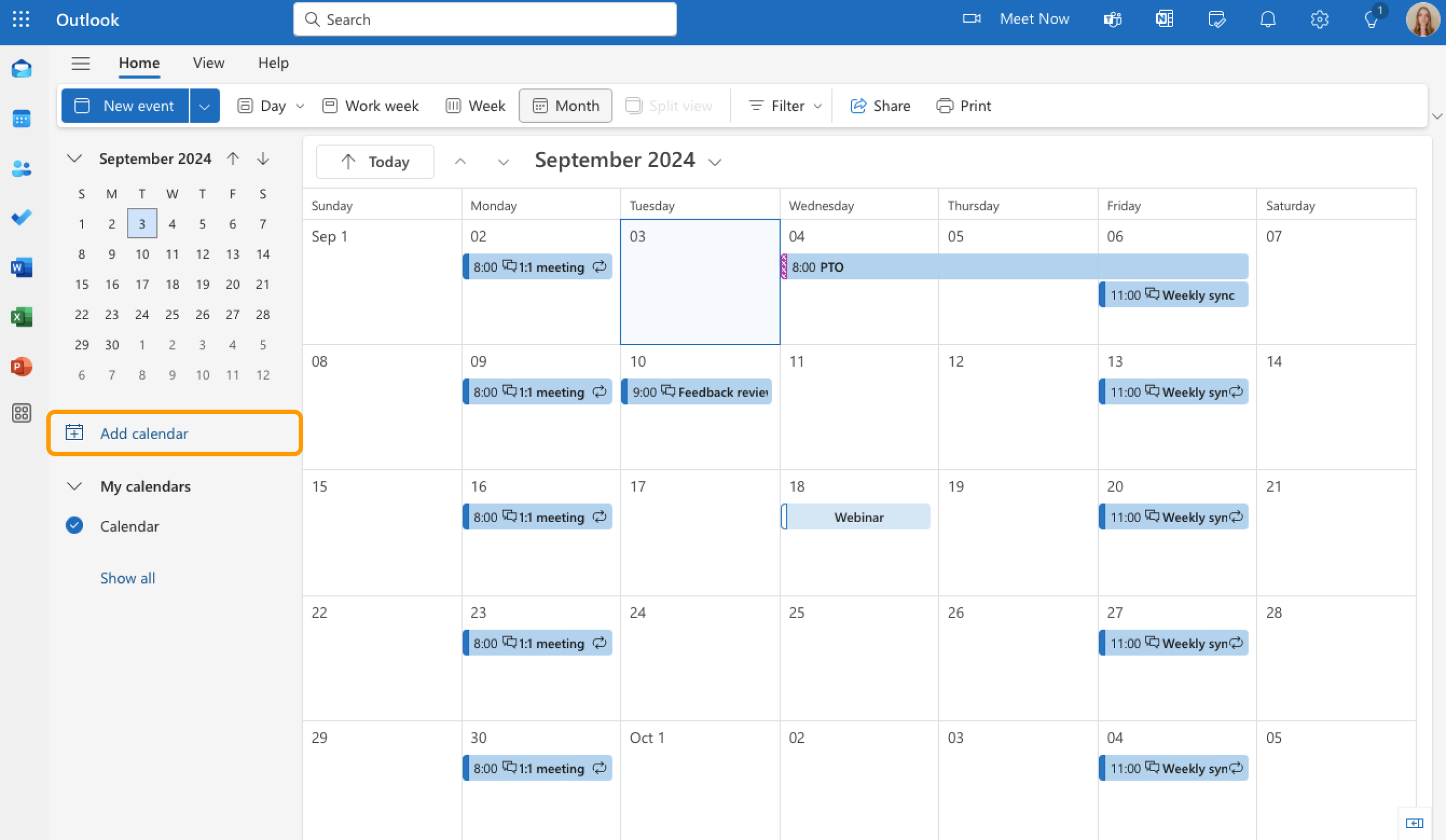
Add Planner Calendar To Outlook
Add Planner Calendar To Outlook
To add a planner calendar to Outlook, start by opening the application and navigating to the calendar section. Look for the option to add a new calendar. This feature allows you to integrate various calendars seamlessly.
Once you find the option, select “Add from Internet” or “Add from File,” depending on your planner’s format. Enter the URL or upload the file as prompted. This step ensures that your planner calendar syncs with Outlook effortlessly.
After adding the planner calendar, check that all events and tasks appear correctly. You may need to adjust settings to customize notifications and reminders according to your preferences. This way, you won’t miss important deadlines.
Using a planner calendar in Outlook not only keeps you organized but also enhances collaboration if you’re working with a team. Everyone can stay updated on shared tasks and deadlines, making teamwork more efficient.
Integrating a planner calendar into Outlook is a simple yet effective way to boost your productivity. By following these steps, you can enjoy a more organized schedule and better manage your time effectively.
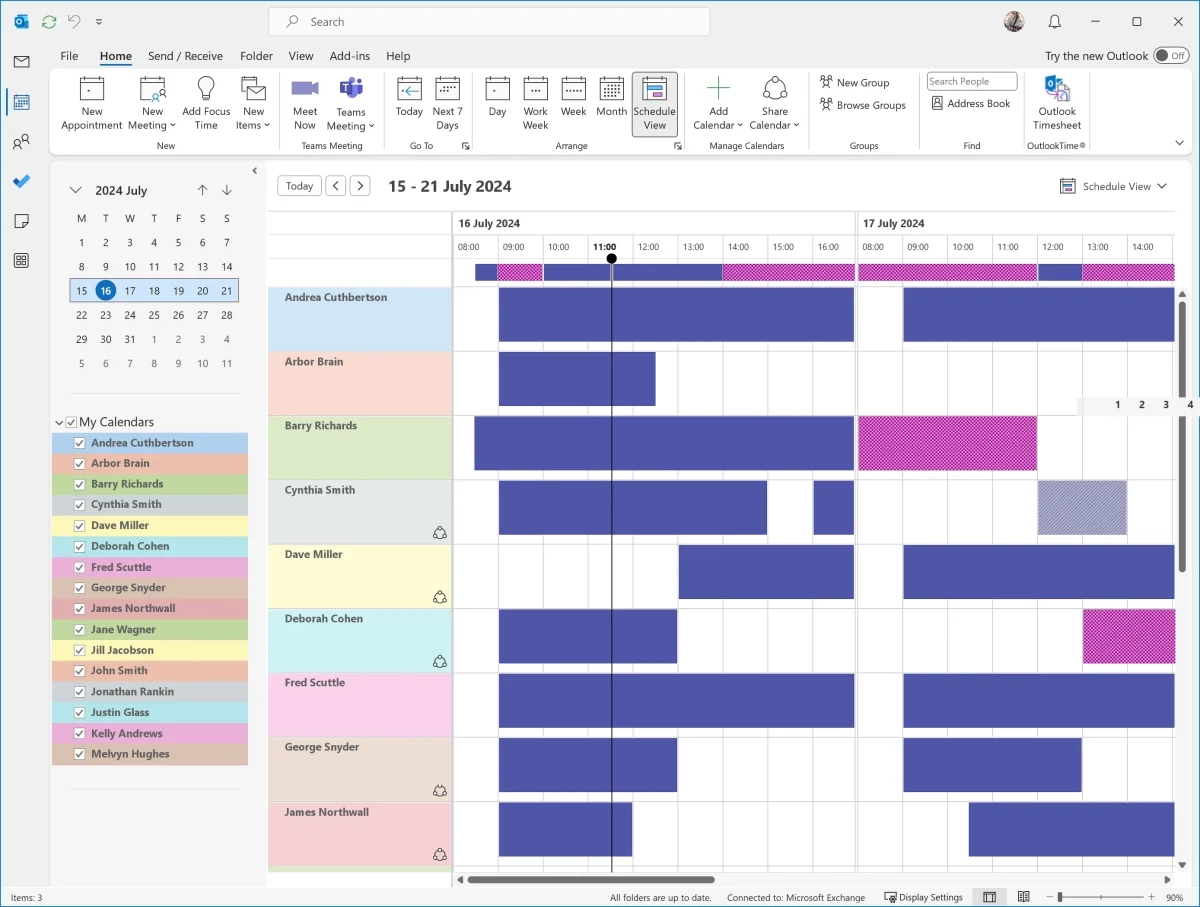
How To Create An Outlook Team Calendar For Better Employee Scheduling
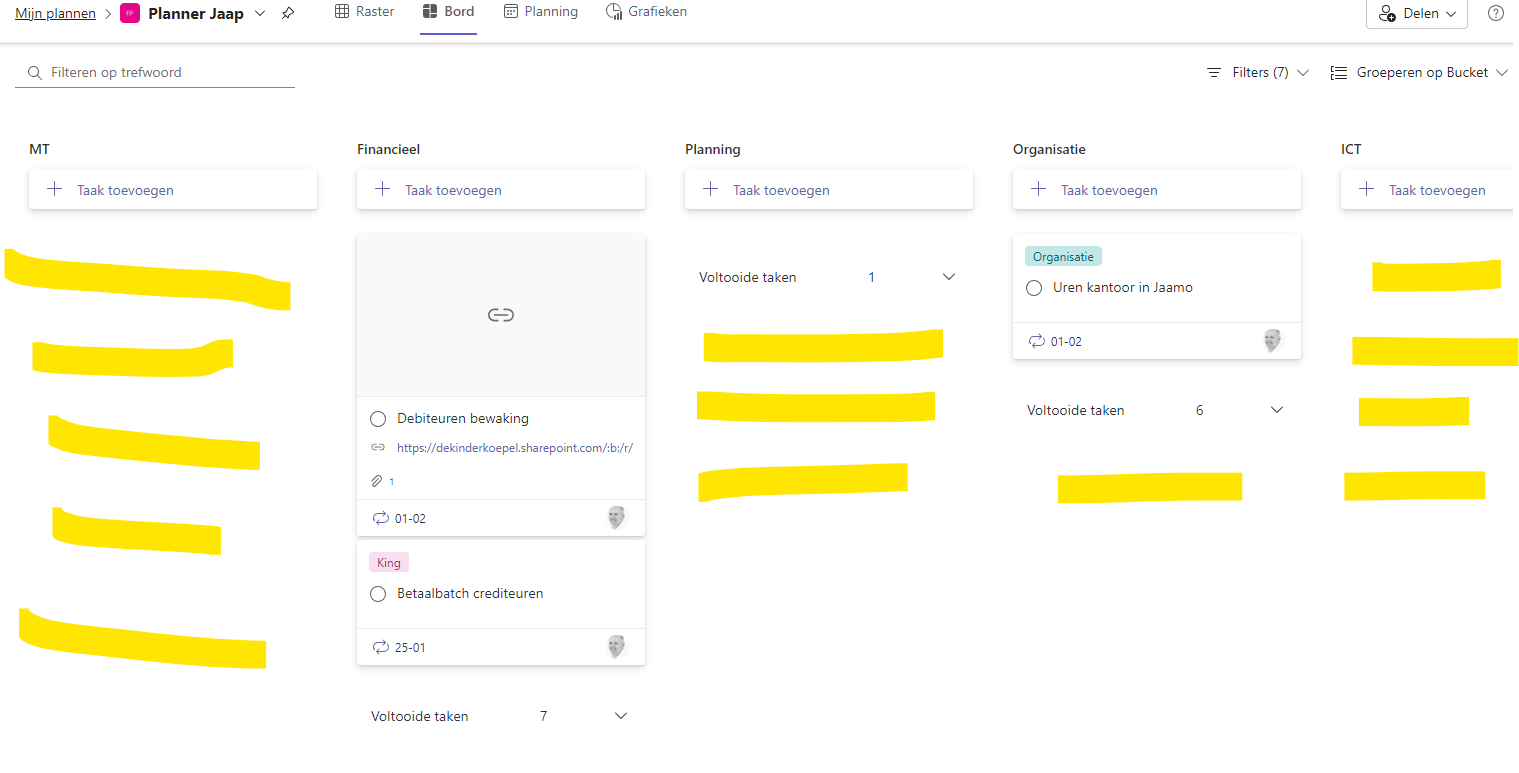
How To Add Planner Task To Outlook Calendar Microsoft Q amp A

Microsoft Planner Add Plan And Assigned To Me To Outlook Calendar
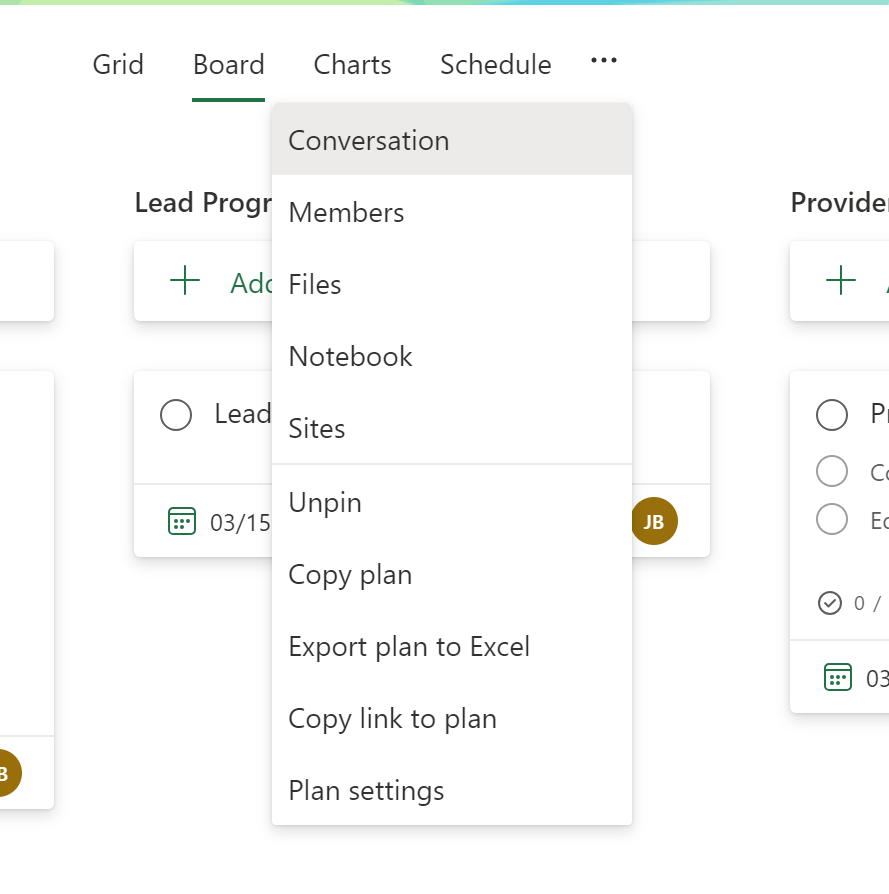
I Do Not Have An add To Outlook Calendar Option In Microsoft
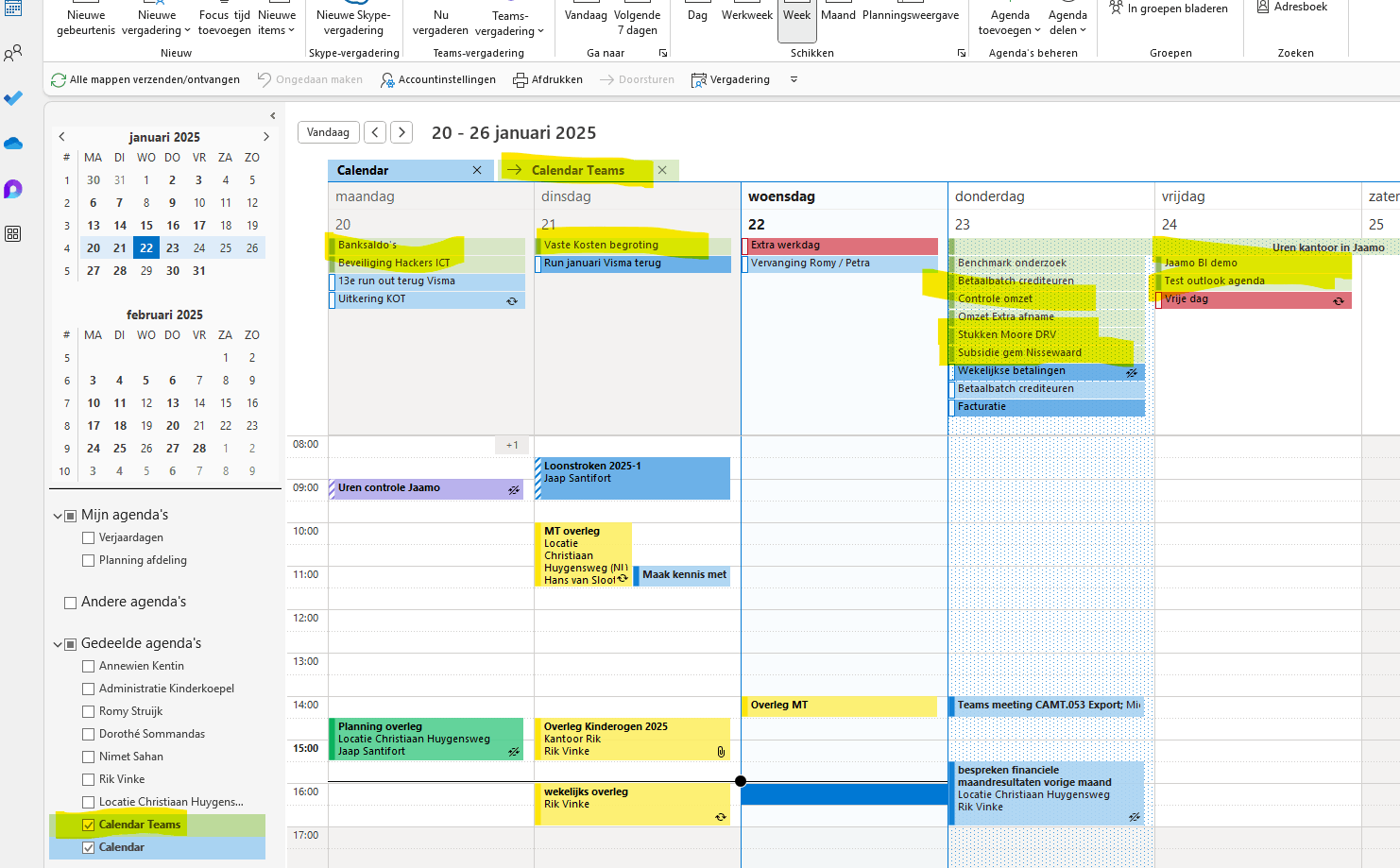
How To Add Planner Task To Outlook Calendar Microsoft Q amp A