Managing tasks and schedules can often feel overwhelming, especially when juggling multiple platforms. Integrating tools like Microsoft Teams and Outlook Calendar can streamline your workflow and enhance productivity.
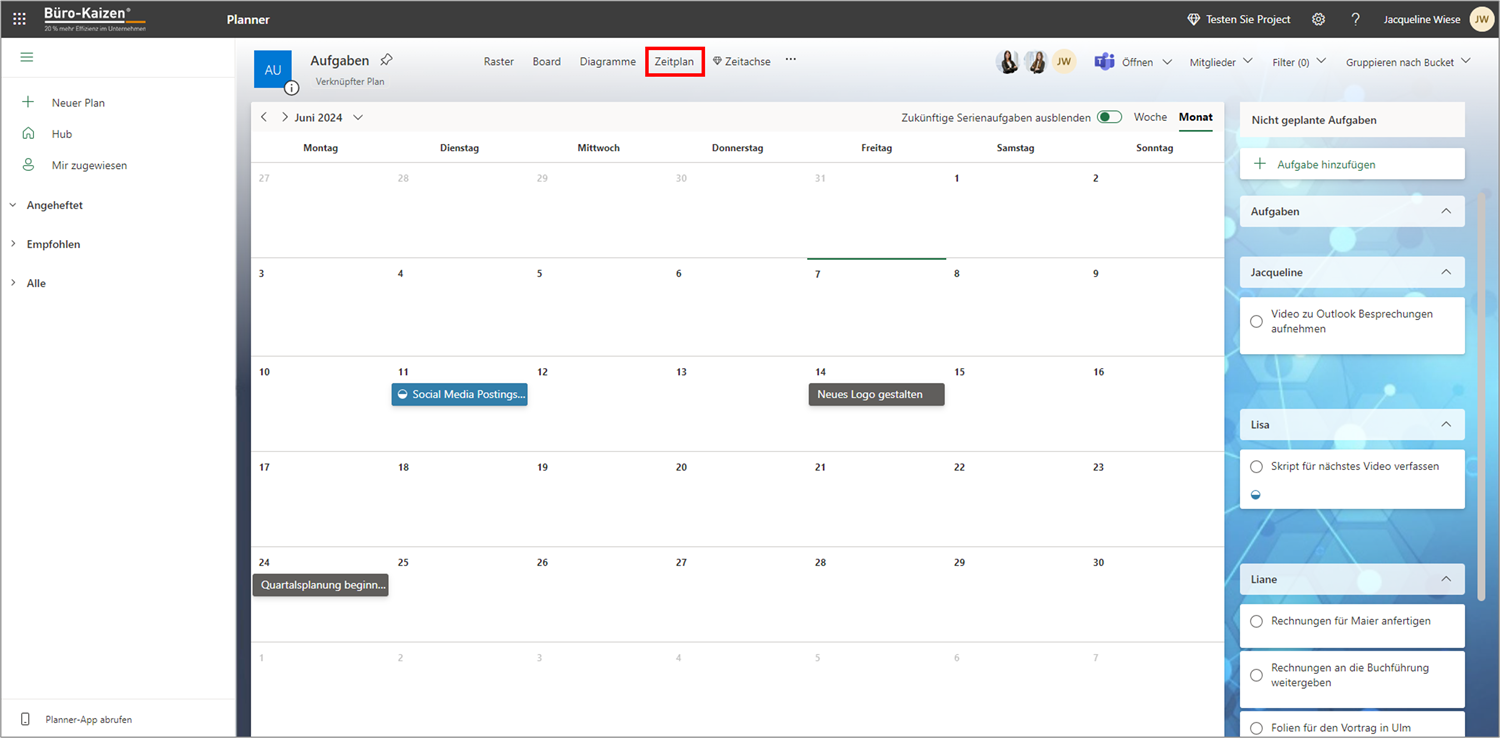
Link Teams Planner To Outlook Calendar
Link Teams Planner To Outlook Calendar
Linking Teams Planner to Outlook Calendar allows you to view your tasks alongside your appointments. This integration helps you prioritize your day effectively, ensuring you never miss a deadline or meeting.
To set up this connection, navigate to the Teams app and select the Planner tab. From there, you can sync your tasks directly with your Outlook Calendar, creating a seamless experience.
Once linked, any updates made in Teams Planner will automatically reflect in your Outlook Calendar. This real-time synchronization keeps you informed about changes without needing to switch between apps constantly.
This integration not only saves time but also reduces the risk of overlooking important tasks. With everything consolidated, you can focus more on completing your work rather than managing multiple schedules.
Incorporating this feature into your daily routine can significantly enhance your productivity. By linking Teams Planner to Outlook Calendar, you create a more efficient workflow that helps you achieve your objectives with ease.
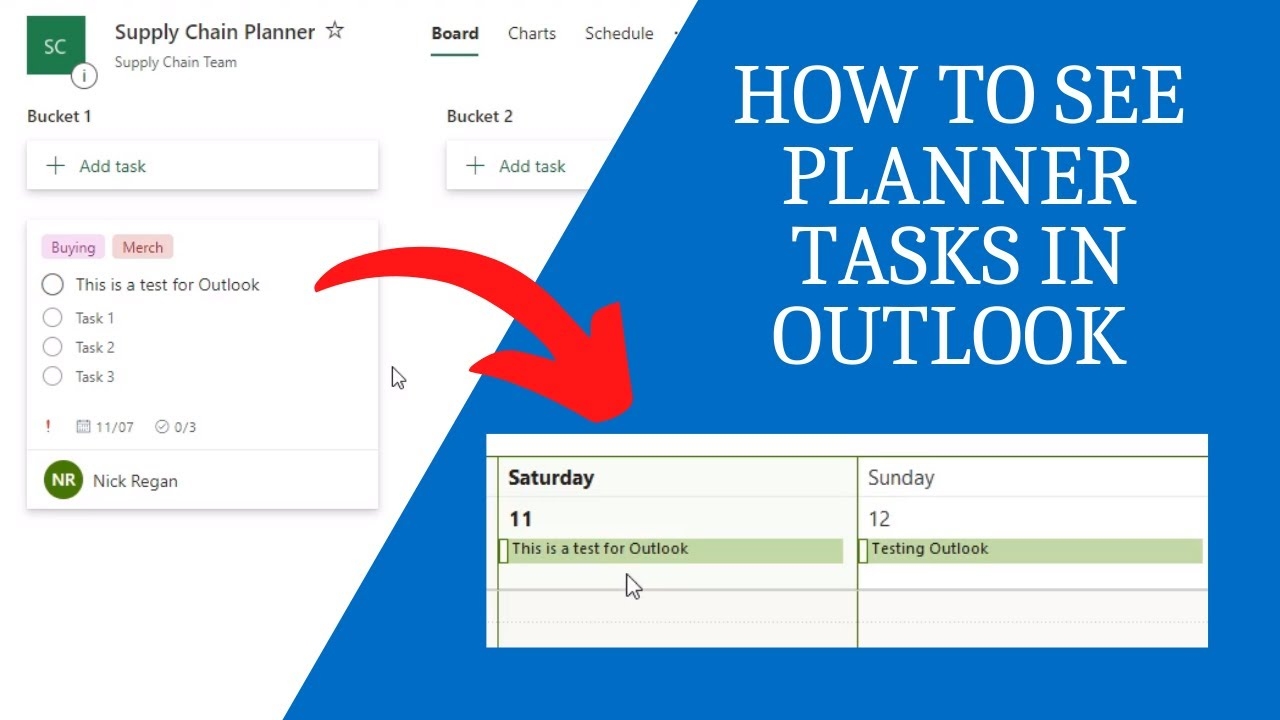
How To See Microsoft Planner Tasks In Outlook Integrate Planner With Outlook
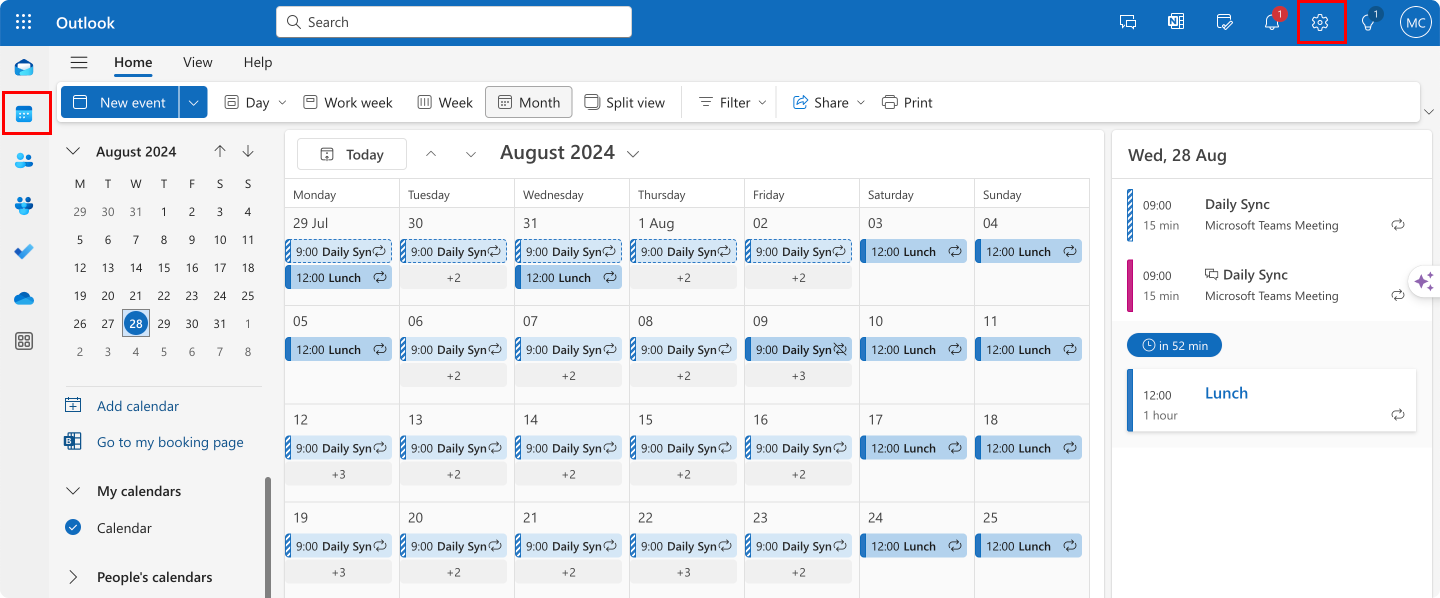
How To Seamlessly Sync MS Teams And Outlook Calendars
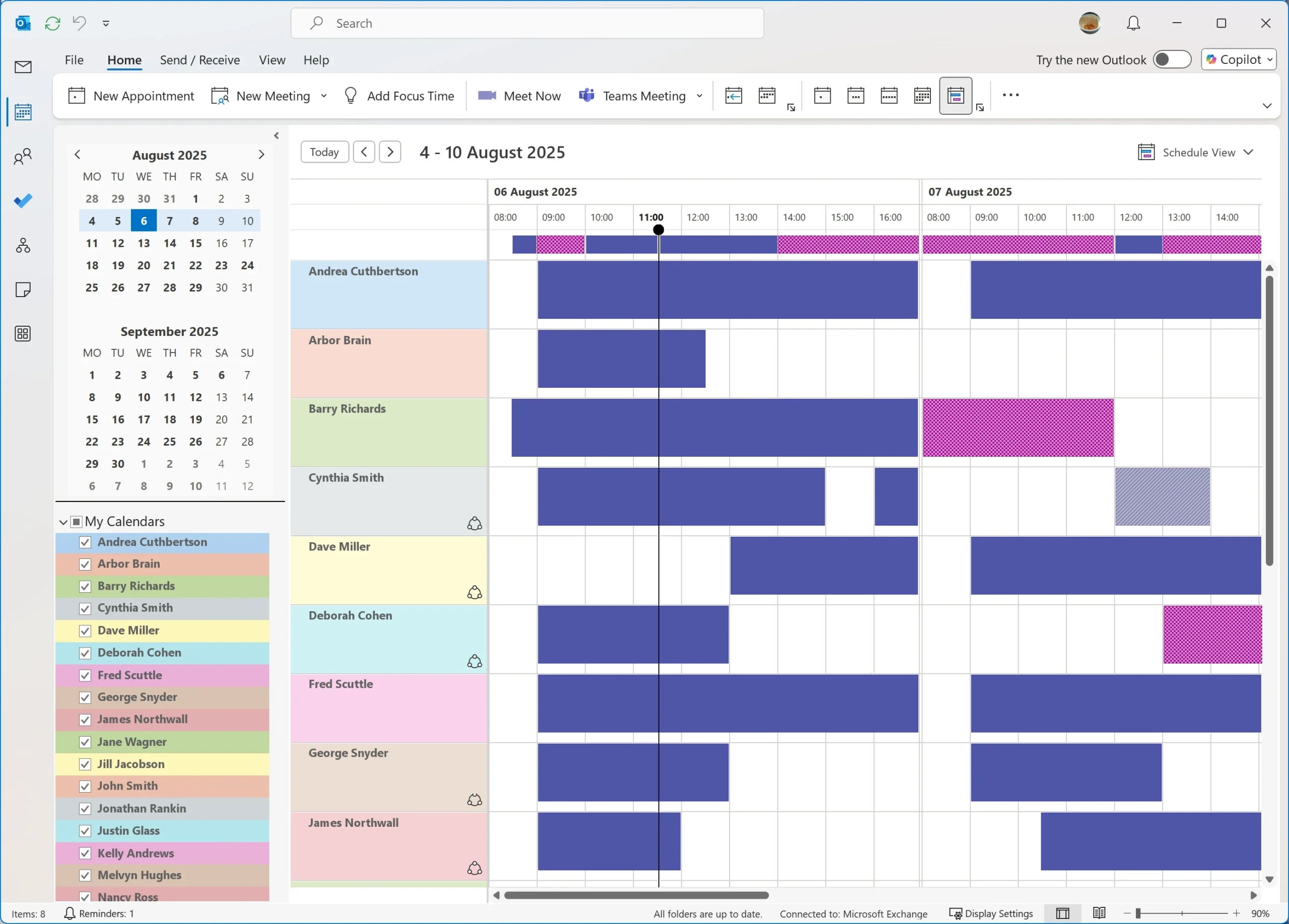
How To Create An Outlook Team Calendar For Better Employee Scheduling
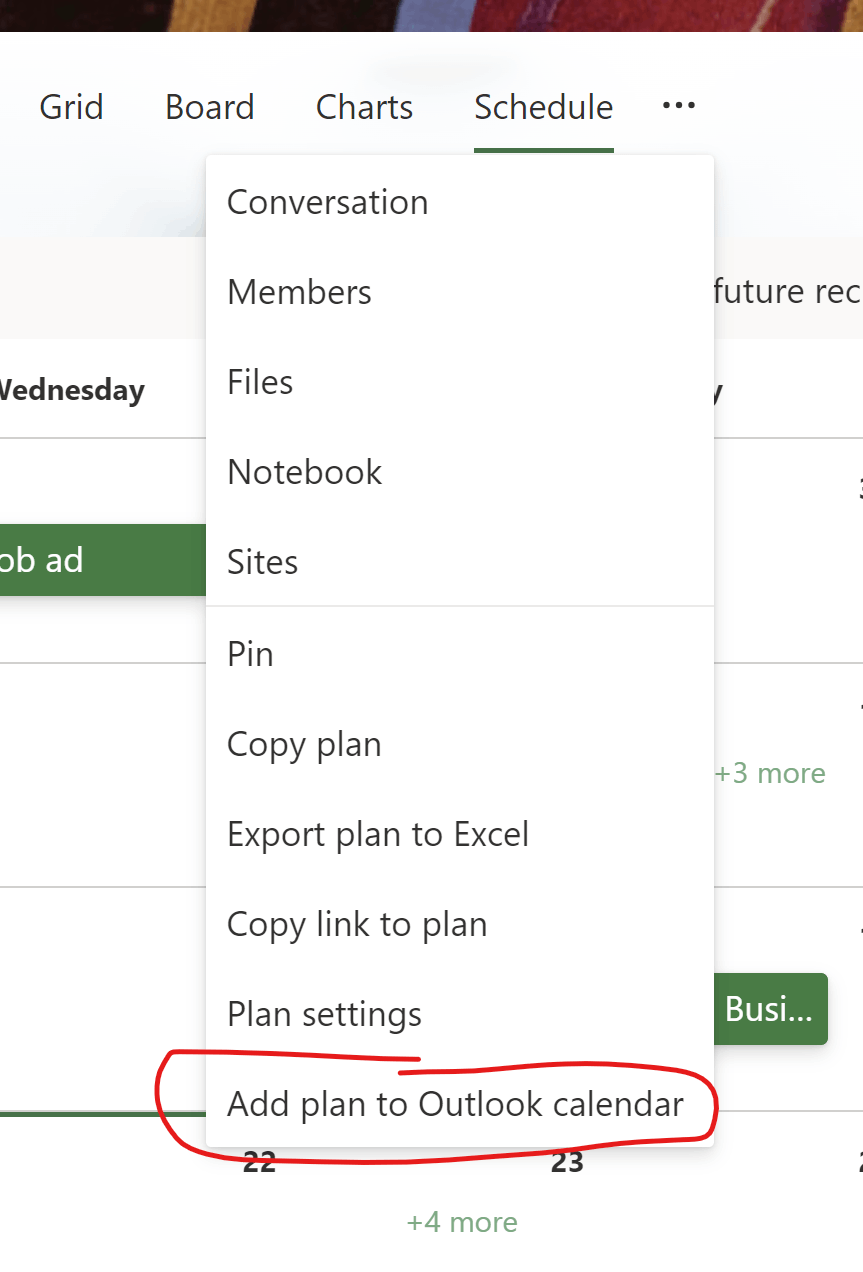
Sync Tasks Planner amp To Do Between Outlooks amp Teams WebVersion
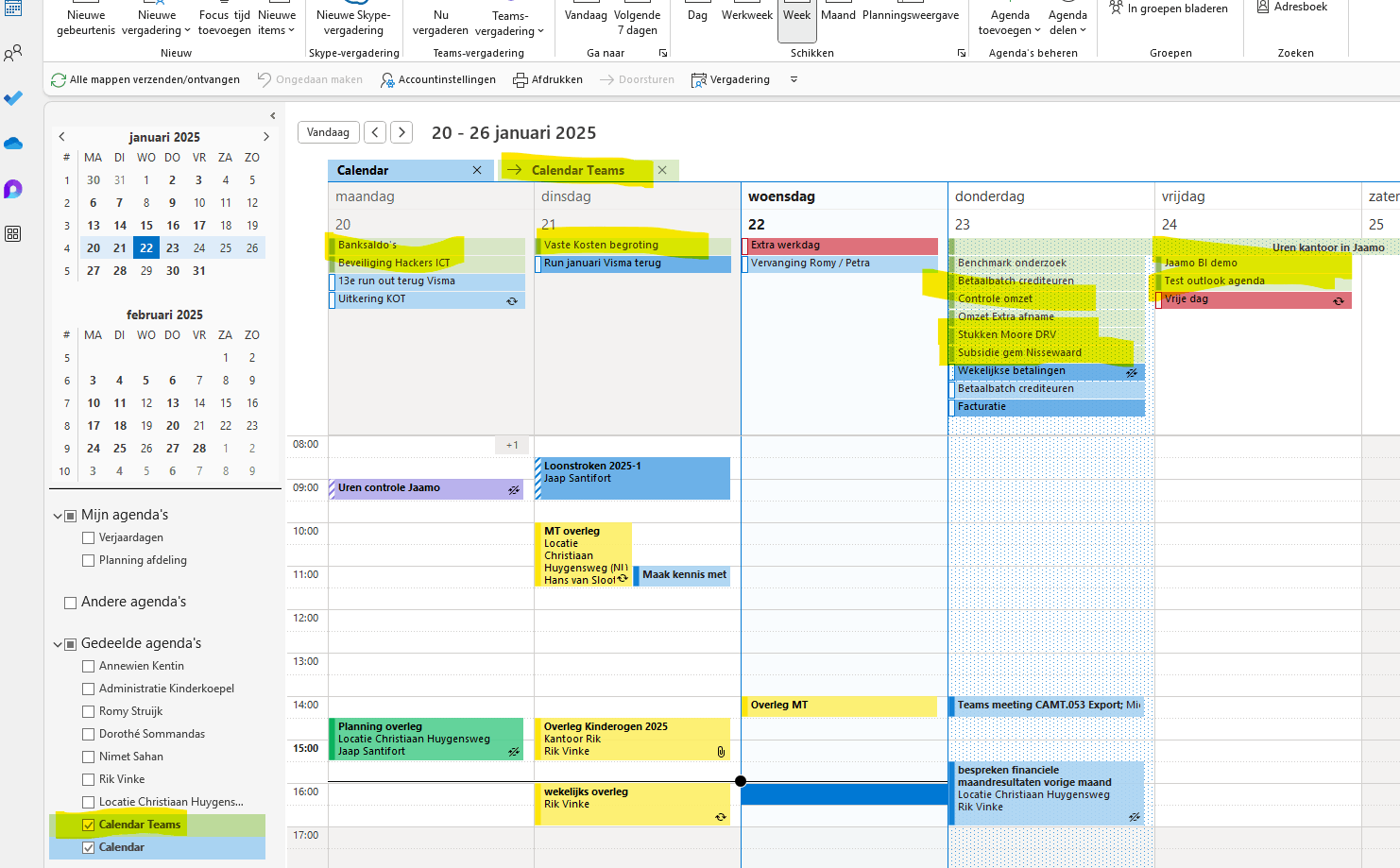
How To Add Planner Task To Outlook Calendar Microsoft Q amp A